
Recovering a deleted file
To recover a deleted file, go to the Team Portal, then Files, then navigate to the location of the deleted file. Follow these steps to complete the file recovery:
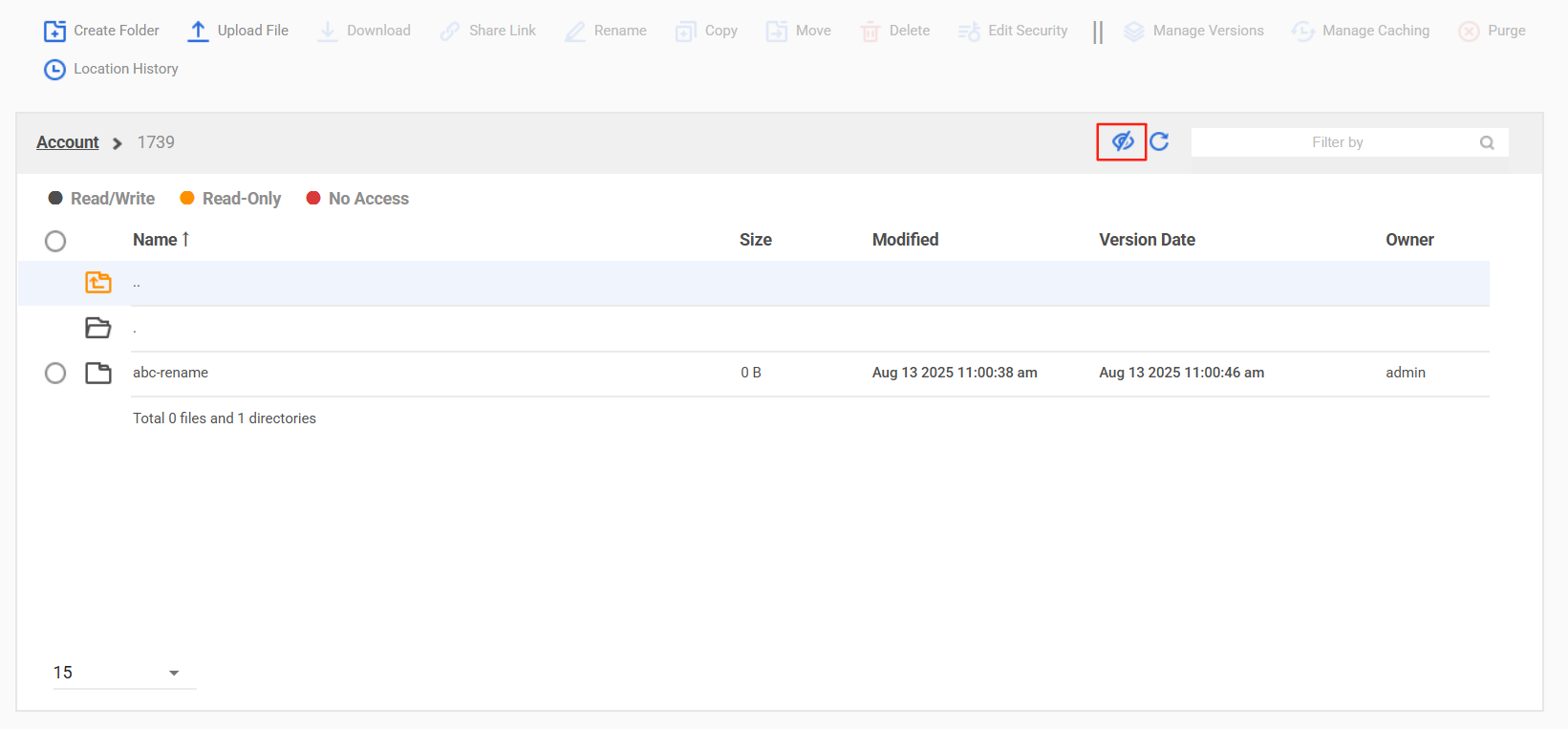
- Click on the eye icon to enable display of deleted files. By default, deleted files are hidden.
- Select the file to recover.
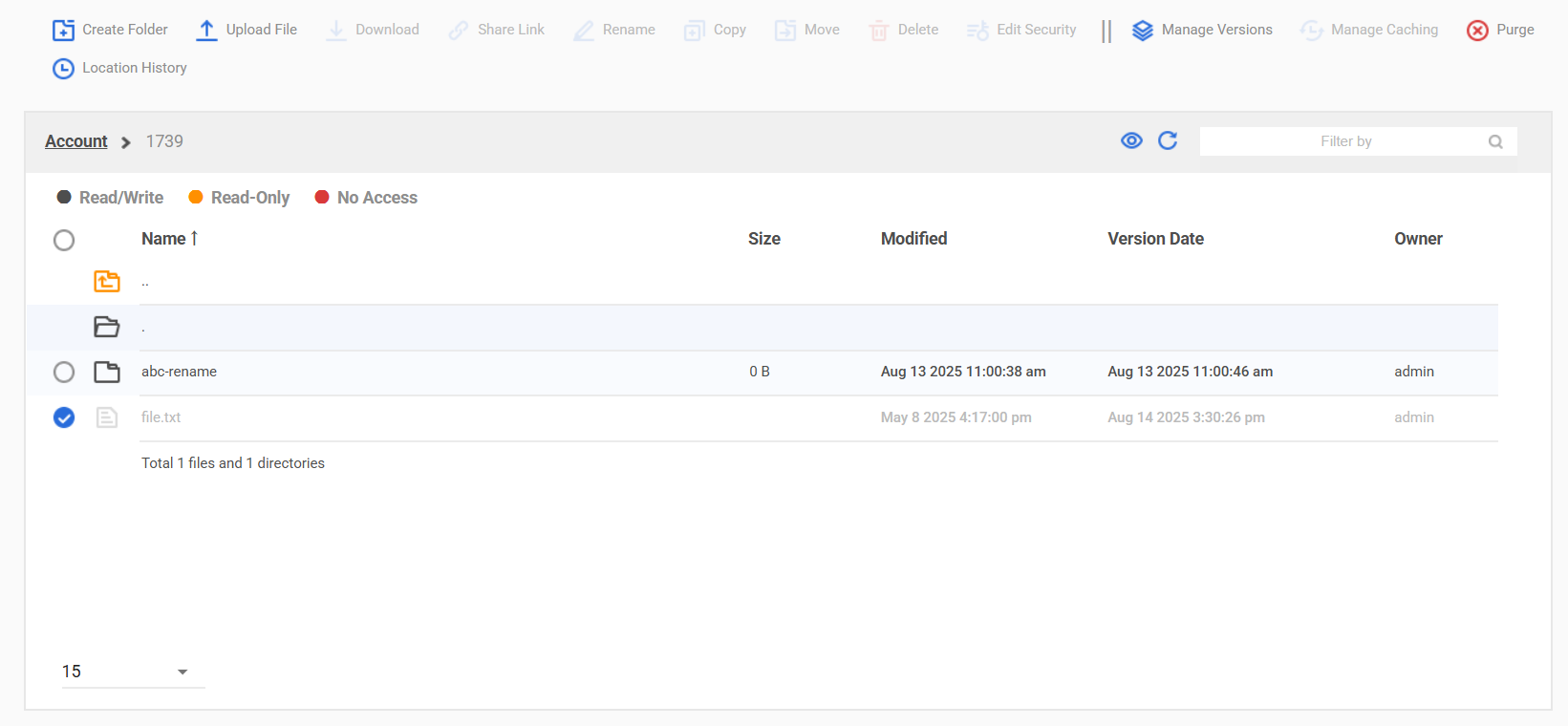
- Click on Manage Versions.
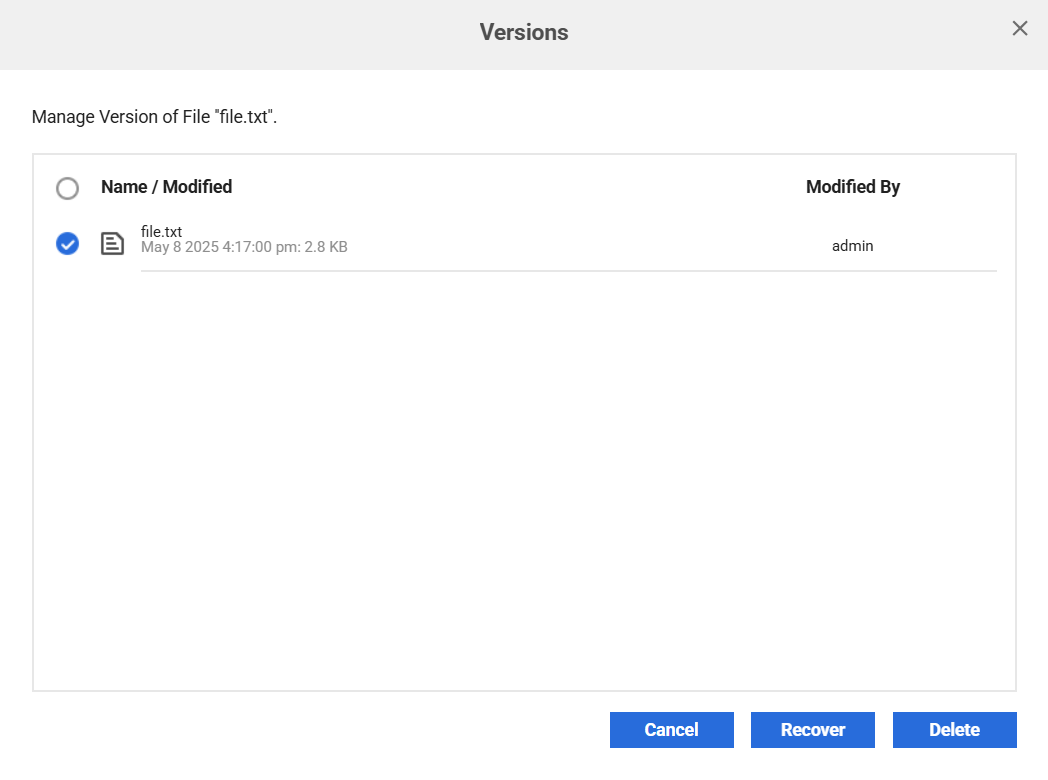
- Select the version to recover.
- Click Recover.
Note: If a file has been purged from the Team Portal, it is permanently deleted and cannot be recovered.
Note: The Team Portal must have read/write access to the share, otherwise the Recover button will be disabled.
Recovering a deleted folder
Use the procedure described above to recover a deleted folder.
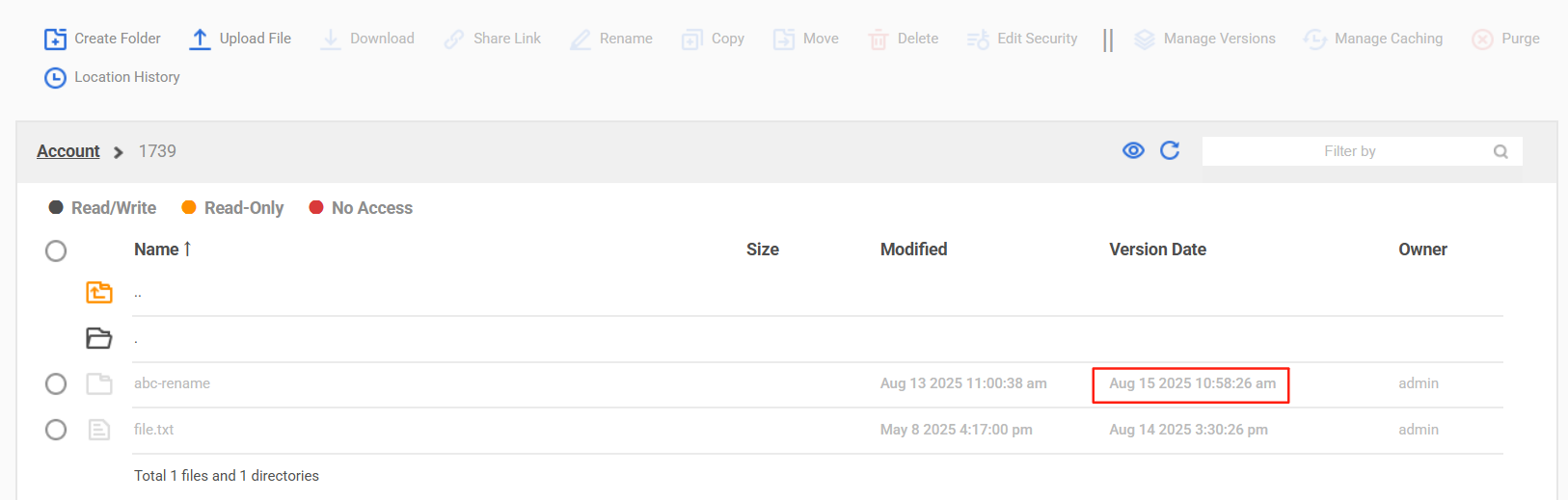
- Modified - File/Folder modified time.
- Version Date - The time a version was created or modified in Morro system is the basis for version management.
- Create file/folder at A, then drag and drop to Morro share at B, the A is "Modified" and B is "Version Date". If create file/folder in Morro share, the A and B should be close.
You will see the following dialog after clicking Manage Versions:
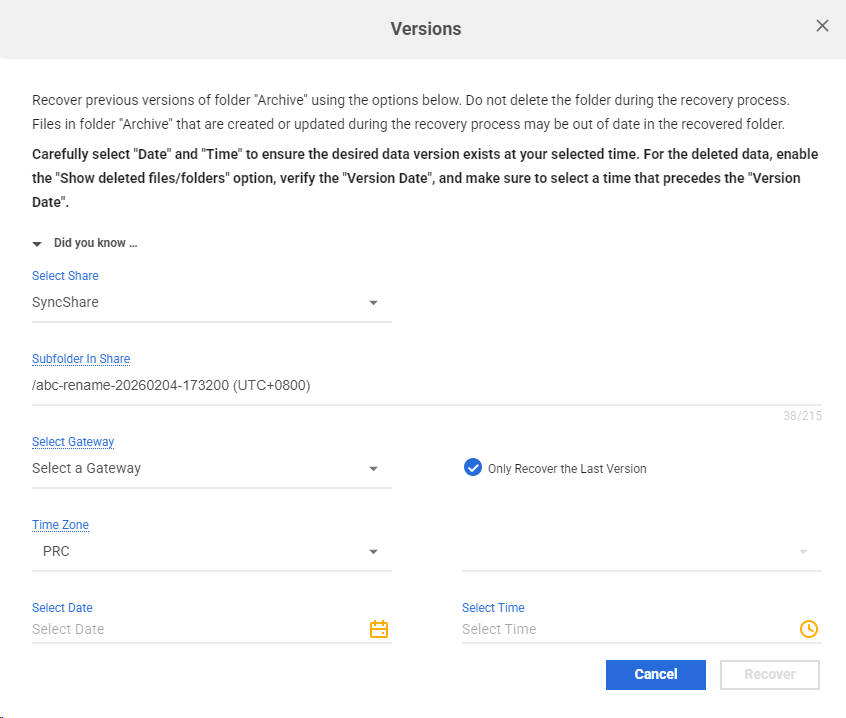
Select a gateway to do the file processing. other settings can be modified as needed.
Only Recover the Last Version - If this option is enabled, only the latest version of each file that existed at the specified point in time will be restored.
Select Data and Time - Select the data and time that the folder and its contents have existed but not deleted. (If delete folder, will update the "Version Date" time of this folder in files page, "Version Date" time is the deleted time of this folder.) If want to recover this folder, select the data and time before the "Version Date" time.
The recovered folder will show in share that selected in "Select Share" and show in the path with the setting in "Subfolder In Share".
Recovered folders will be available on all CacheDrives with access to the share.
Recovering a parent share/folder with deleted files/folders
Select a share/folder to recover versions. Other settings same with recover a deleted folder
Select Data and Time - Need select the time that the folder and files have existed but not deleted, check the "Version Date" time of the deleted files and folders in this share/folder, select the data and time before the "Version Date" time.
File Retention Policy
Note that the "Keep 30 versions" and "Keep 300 versions" retention policy will not keep 30 or 300 consecutive versions. The saved versions will span a period of weeks or months to increase the chances of recovering a useful previous version. For more information on the retention policy, please see the following:
Versioning and File Retention Policy